Tasks lets you create, assign, share, and manage tasks and subtasks for your team.
Create tasks with titles, descriptions, and due dates
Set priority and status
Assign each task to one person (including yourself)
Share tasks with multiple additional users
Add and manage subtasks
Comment on a task and @mention teammates
Set a task to repeat on a daily, weekly, or monthly schedule
Navigate to the Team section in the left-hand menu.
Click Tasks.
The green Create New Task button is located on the left-hand side.
Use it to create a new task.
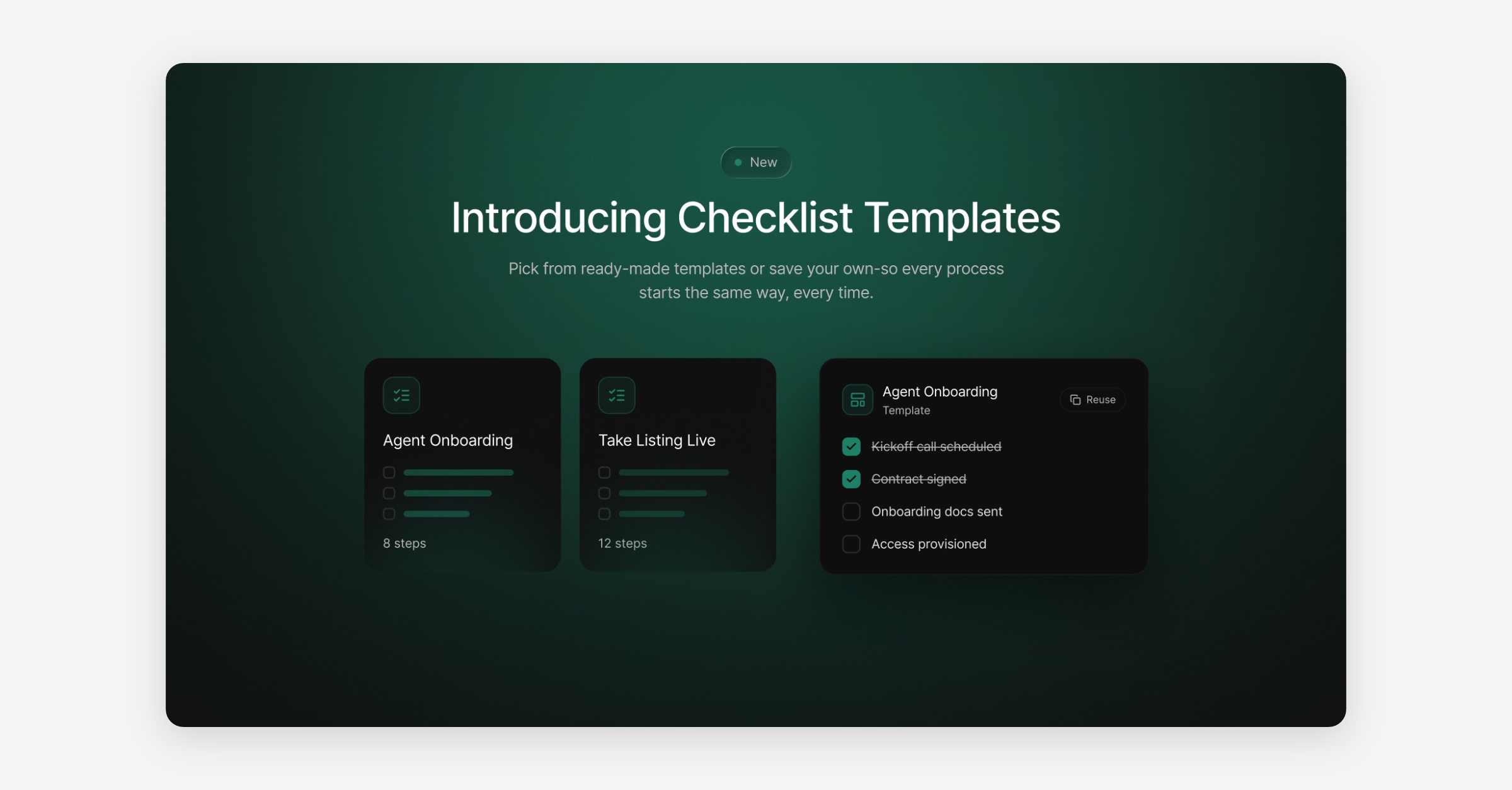
The same dropdown also lets you create a Checklist Template or a Standalone Checklist. See the Checklist Templates & Property Checklists article for details.
Located directly below the Create New Task button.
Use this search bar to quickly find existing tasks.
The Tasks page has a segmented toggle for switching between your Tasks, your saved Templates, and a Property Checklists dashboard listing every property in your business with a checklist attached.
Click Create New Task.
Complete the Task Form, including the following fields:
Task Title
Task Description: overview of the task
Due Date
Priority: Low, Medium, or High
Status: To Do, In Progress, or Done
Assigned To: a task can be assigned to one person only, including yourself
Share With: share the task with multiple additional users for visibility
Subtasks: add one or more subtasks as needed
Repeat (optional): make the task recurring. See Recurring Tasks below
Note: Any field marked with an asterisk (
*) must be completed before saving.
Once created, tasks appear in the task list on the right-hand side. Select a task to:
Edit task details
Update the due date, priority, or status
Share the task with the entire team or specific additional users
Add more subtasks
Post comments and @mention teammates
Click the green plus (+) icon labeled Add a Subtask to create additional subtasks.
Open a task and use the Comments section at the bottom of the detail panel to leave a note for anyone with access to the task.
Type @ to search for and tag a teammate. Selecting a suggestion inserts their name into the comment.
Tagging someone on a private task automatically shares that task with them, so the notification can take them straight to it. Team wide tasks are unaffected.
The task's creator, assignee, and anyone @mentioned are notified when a new comment is posted.
You can delete your own comments. Owners, Global Admins, and Admins can delete any comment.
When creating a task, use the Repeat field to make it recur automatically:
Choose a frequency: Does not repeat, Daily, Weekly, or Monthly.
Set the interval using the every field, for example every 2 weeks.
For a Weekly recurrence, select which day of the week the task repeats on.
For a Monthly recurrence, select which day of the month, 1 through 31, the task repeats on.
Leaving Repeat set to Does not repeat creates a normal one time task.
MyOps automatically generates a new task instance each time the schedule comes due, copying the title, description, priority, assignee, sharing, and subtasks from the original.
If the scheduler is briefly down, missed occurrences are caught up automatically the next time it runs.
To stop a recurring series so no further instances are created, use the Stop recurrence option on the task, available to the creator or an Owner or Admin.
Click Save Changes to apply and store updates.
If your business has overdue task reminders enabled, see Settings > Reminders under the Notifications section, assignees and creators are automatically notified when a task becomes 1, 3, and 7 days overdue.
The Tasks page is also home to reusable checklist templates and the property checklists created from them. See the Checklist Templates & Property Checklists article in this section for full details.