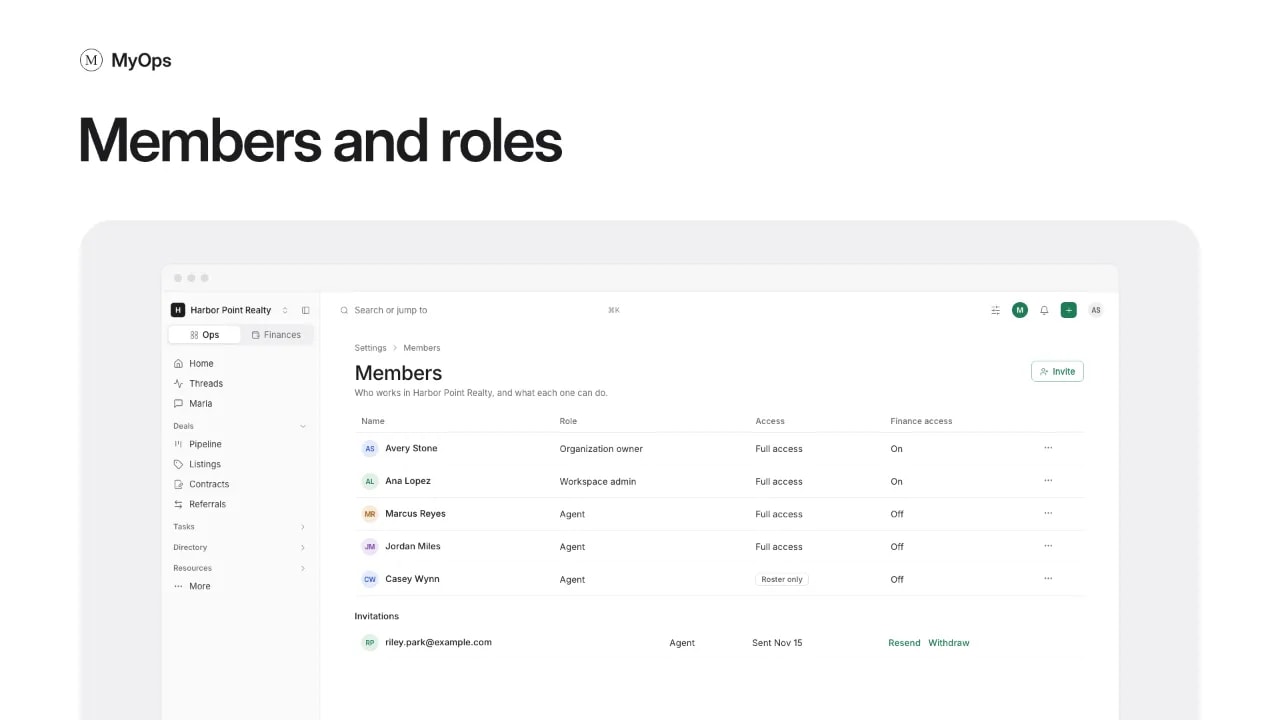
Add the people you work with, decide what each one can do, and archive someone who leaves.
Steps
- Open the workspace menu at the top of the sidebar, select All settings, then Members.
- Select Invite. Enter the first name, last name and email.
- Pick a Role and an Access, then select Send invite. For Roster only, select Add to the roster.
- To change someone later, use the menu at the end of their row, or open them. Choose Make workspace admin, Move to Roster only (free, no login), Give Full access (uses a seat) or Archive.
The roles
- Agent: works their own deals and sees their own money.
- Workspace admin: also invites and manages agents, sees every record and changes the workspace's settings. Sees other people's money only with Finance access turned on.
- Organization admin: all of that in every workspace, plus billing and workspaces. Always sees the money.
- Organization owner: everything, plus who is an organization admin.
Good to know
- Full access is a seat: the person signs in. Roster only is free, with no login.
- When someone asks for Full access, select Approve or Not now.
- Invites not accepted yet show under Invitations, with Resend and Withdraw.
- Archive keeps their history and frees the seat. On their page, Hand over open deals moves their deals to someone else.
Who can do it
Owners and admins invite and change members. Only organization owners and admins invite an admin or make someone a workspace admin.