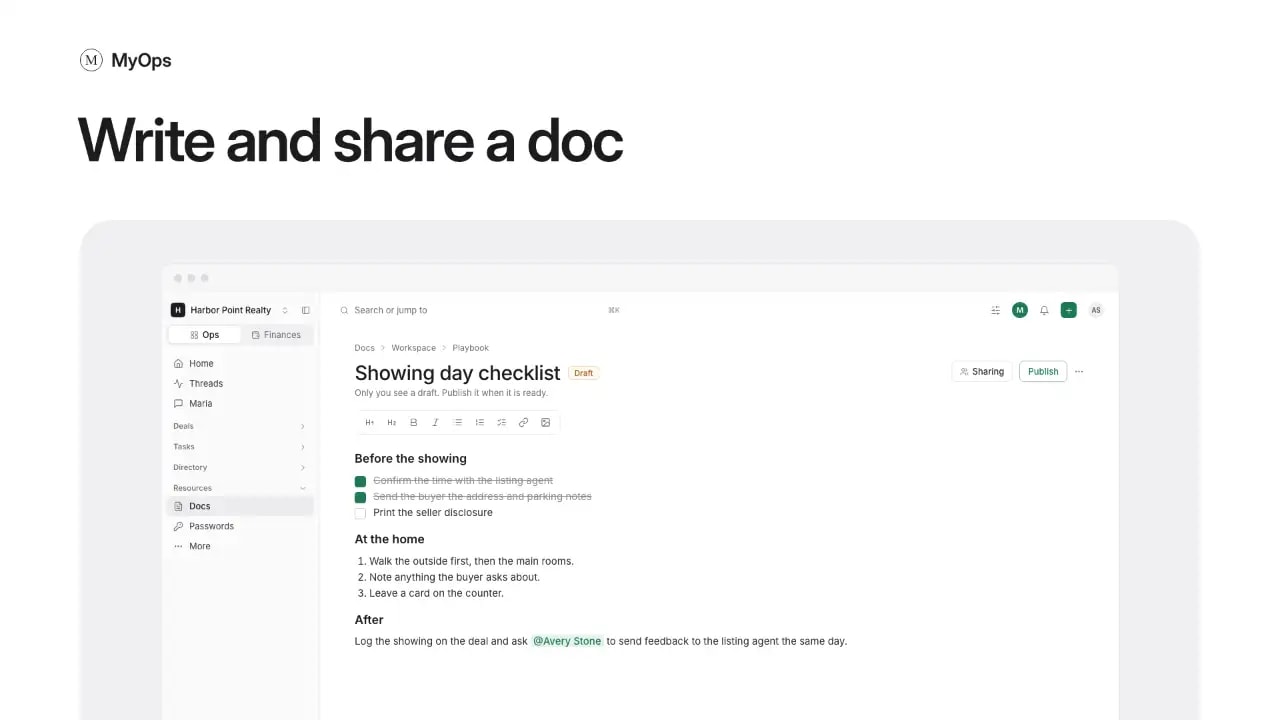
Write a how-to, a script or a checklist once, and share it with the people who need it.
Steps
- In the sidebar, open
Resources>Docs. - Open the folder it belongs in, then select New doc.
- Pick Article, give it a Title, check the Folder, and select Create and write.
- Write. The toolbar has headings, lists, checklists and links. Type @ to name someone, or paste a picture.
- Select Save.
- Select Publish when it is ready. Until then it is a Draft that only you see.
- To change who sees it, open the doc's ... menu and select Sharing.
Good to know
- In a folder, a doc follows the folder's sharing (As the folder). At the top of the library, it stays Only me until you share it.
- New folder makes a folder. What goes inside follows the folder's sharing.
- To move a doc, select Move to in its ... menu, or drag it onto a folder. It takes the new folder's sharing.
- A reader who can't edit can select Request edit access. You choose Let them edit or Decline.
- Public link in the ... menu makes a read-only link for someone outside the workspace. Copy it right away: it shows only once.
Who can do it
Everyone writes docs. Only a doc's owner changes who sees it. Admins can also edit, publish and archive a published doc the whole workspace sees.